The Problem: Great Ideas Die in Commute Traffic
Here’s the thing about running a blog as a side hustle — the best ideas never come when you’re sitting at your desk. They come when you’re packed into a Seoul subway car at 8:47 AM, holding a ceiling handle with one hand and your phone with the other. By the time you get home, open your laptop, log into WordPress, and navigate to the editor… the spark is gone.
I’m a Korean developer running an English blog as a vibe coding side project. I needed a way to go from “I have an idea” to “it’s published” without ever opening a laptop. The answer? A Telegram bot connected to Claude AI.
This is the story of how I built it — and the first time it actually worked.
Step 1: Finding BotFather (And Dodging the Fakes)
If you’ve never made a Telegram bot before, everything starts with one account: @BotFather. He’s the official Telegram bot that creates other bots. Think of him as the DMV clerk of the Telegram bot world, except he’s actually fast and helpful.
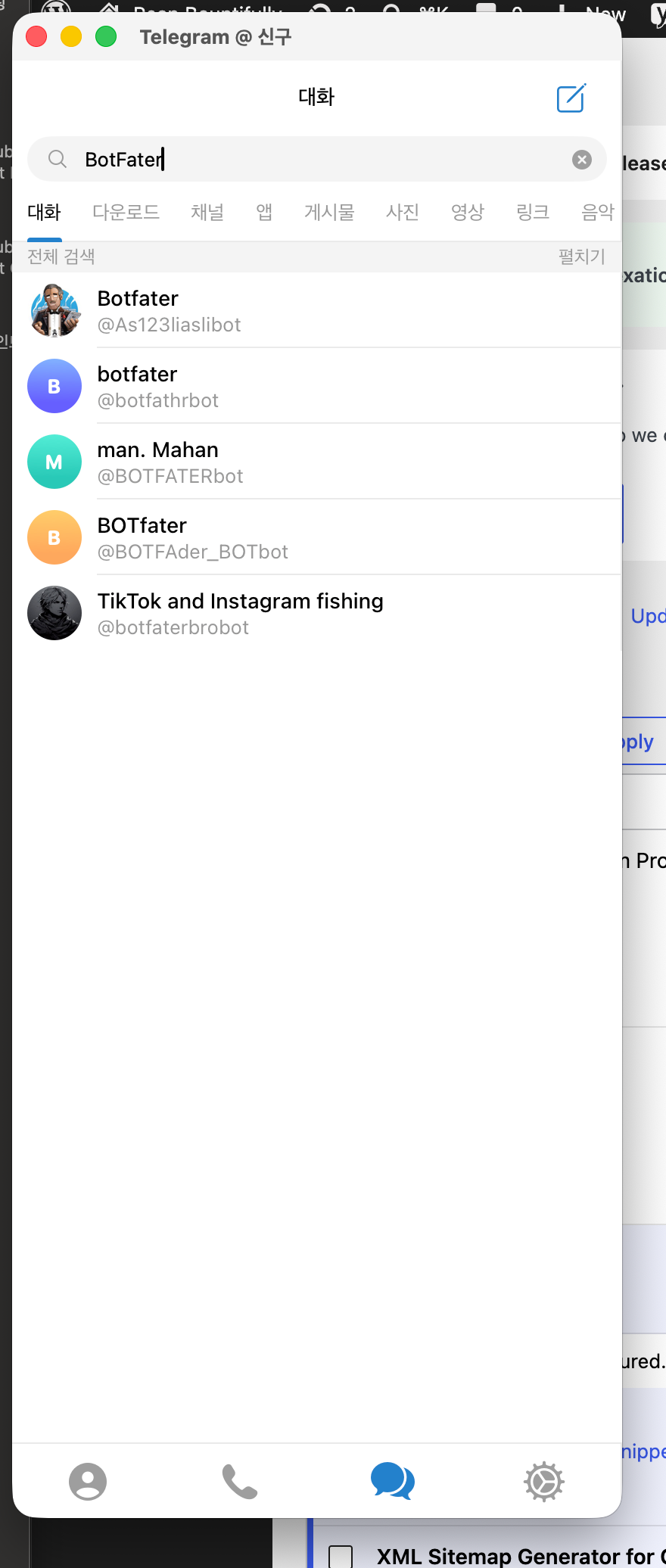
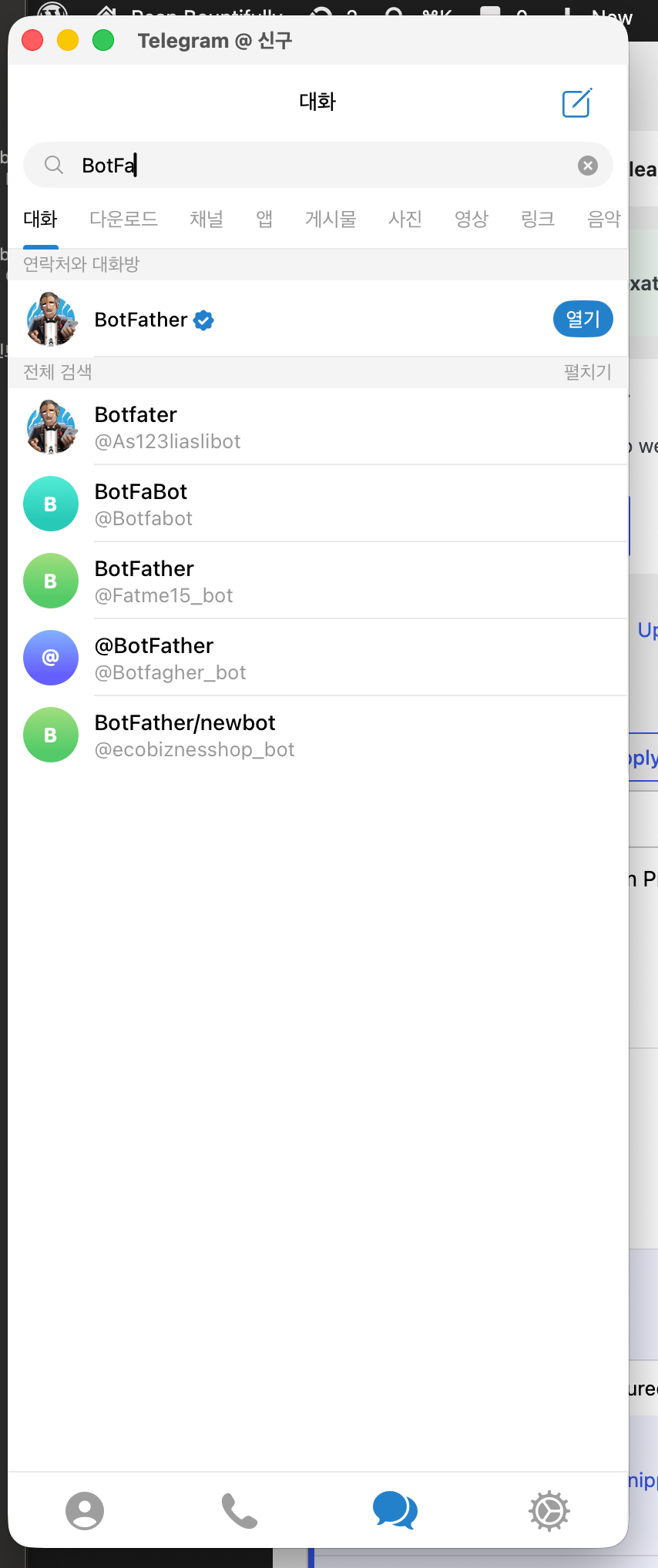
I opened Telegram on my phone, tapped the search bar, and typed “BotFa” — and immediately saw a whole lineup of results. There was Botfater (nice try), BotFaBot (creative), and several other knockoffs trying to look official. But the real @BotFather stands out immediately: he’s got the blue verified checkmark, and his description clearly says he’s the official bot for creating Telegram bots. No ambiguity.
I tapped in.
Step 2: Creating the Bot
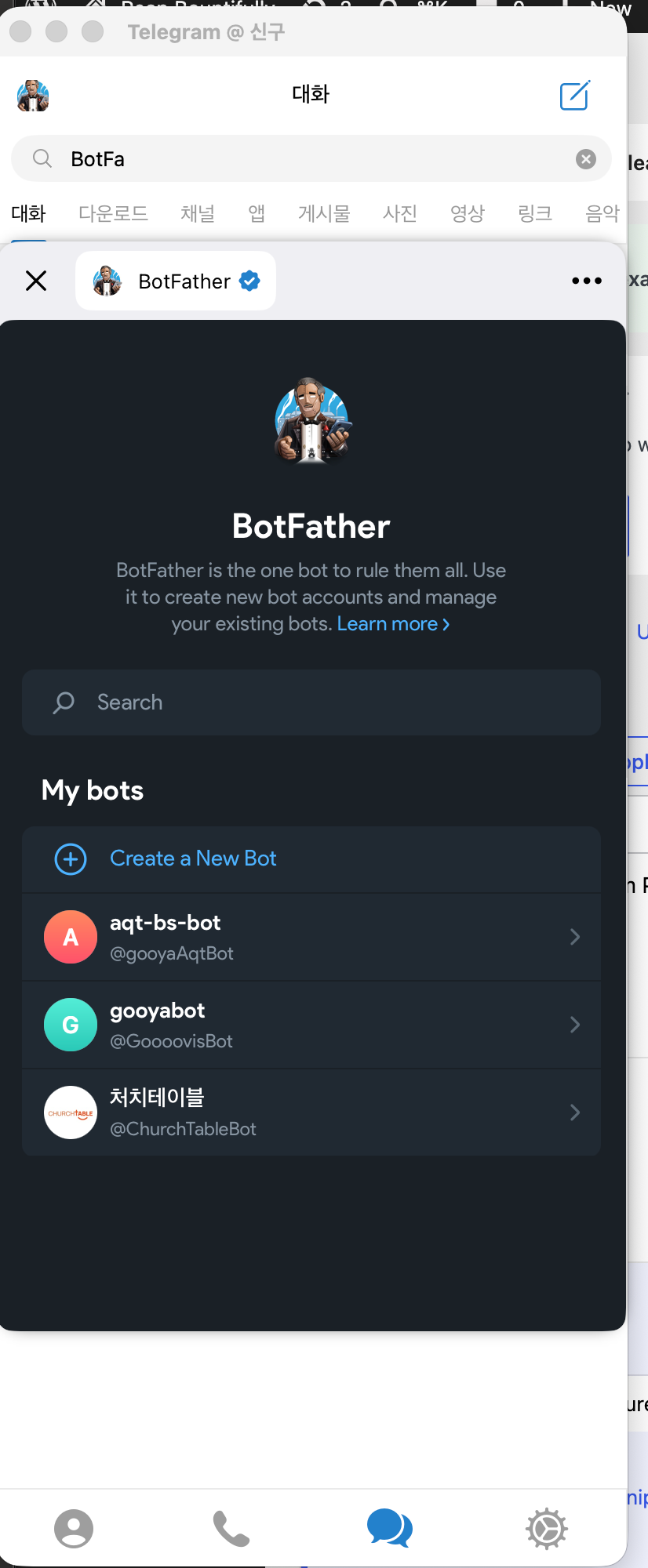
Inside BotFather’s chat, I could see the main menu. I already had a few old bots sitting around from previous experiments — aqt-bs-bot, gooyabot, and one called 처치테이블 (don’t ask). Relics from past weekend projects that never went anywhere.
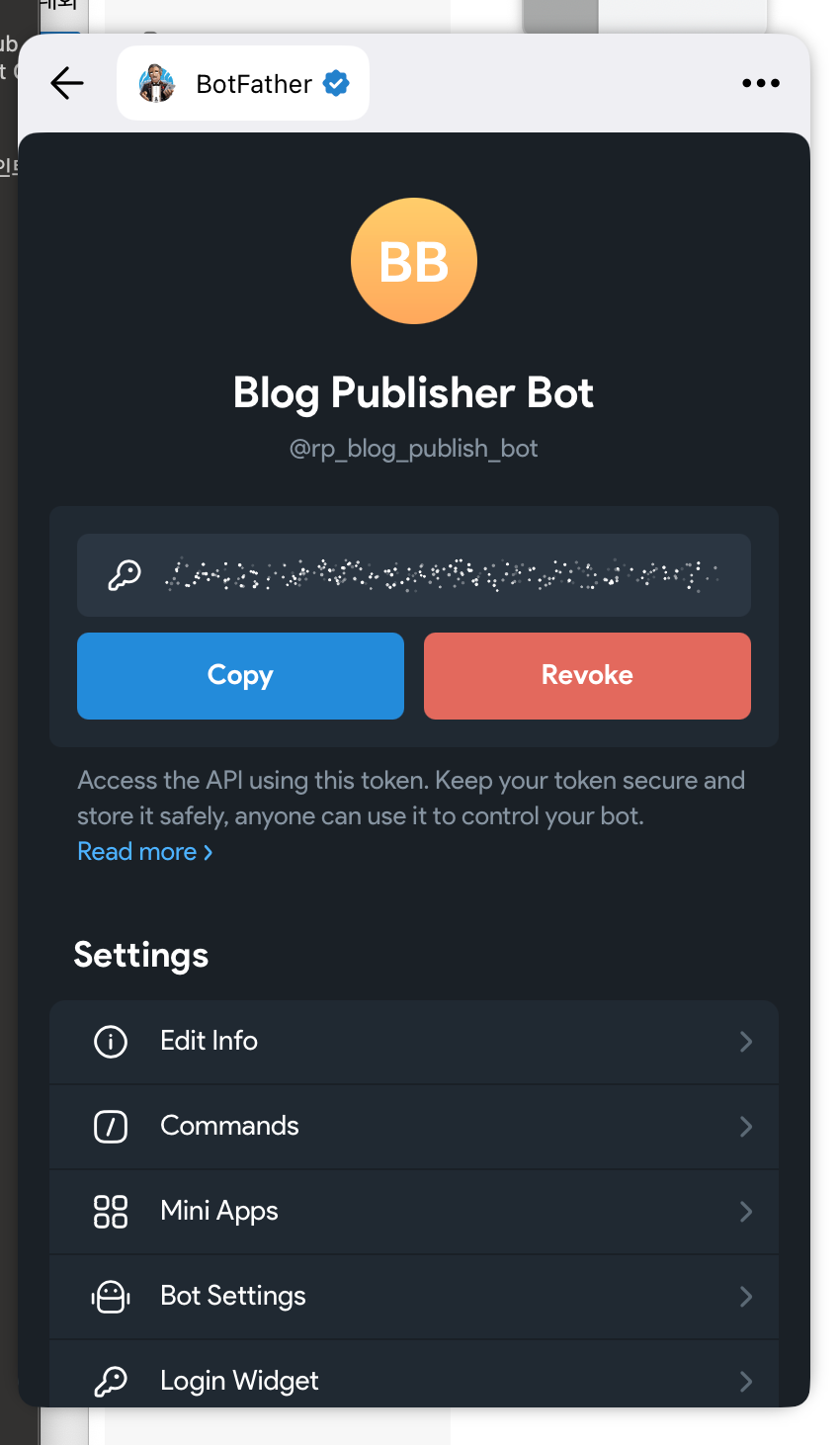
This time was different. I hit “Create a New Bot” and went through the setup flow. Named it Blog Publisher Bot and gave it the handle @rp_blog_publish_bot. BotFather immediately responded with my API token — a long string of characters that serves as the bot’s password, essentially. Right below it were two buttons: Copy and Revoke. Plus a whole settings panel with options like Edit Bot Info, Edit Commands, Bot Settings, and more.
I copied the token and moved on. The bot existed now. But it was just an empty shell — like buying a domain name with no website behind it.
Step 3: First Contact
I navigated to my new bot’s chat. It was completely empty. Just a blank conversation with the message “주고받은 메시지가 없습니다” — No messages yet — and a big blue “시작” (Start) button sitting at the bottom of the screen.
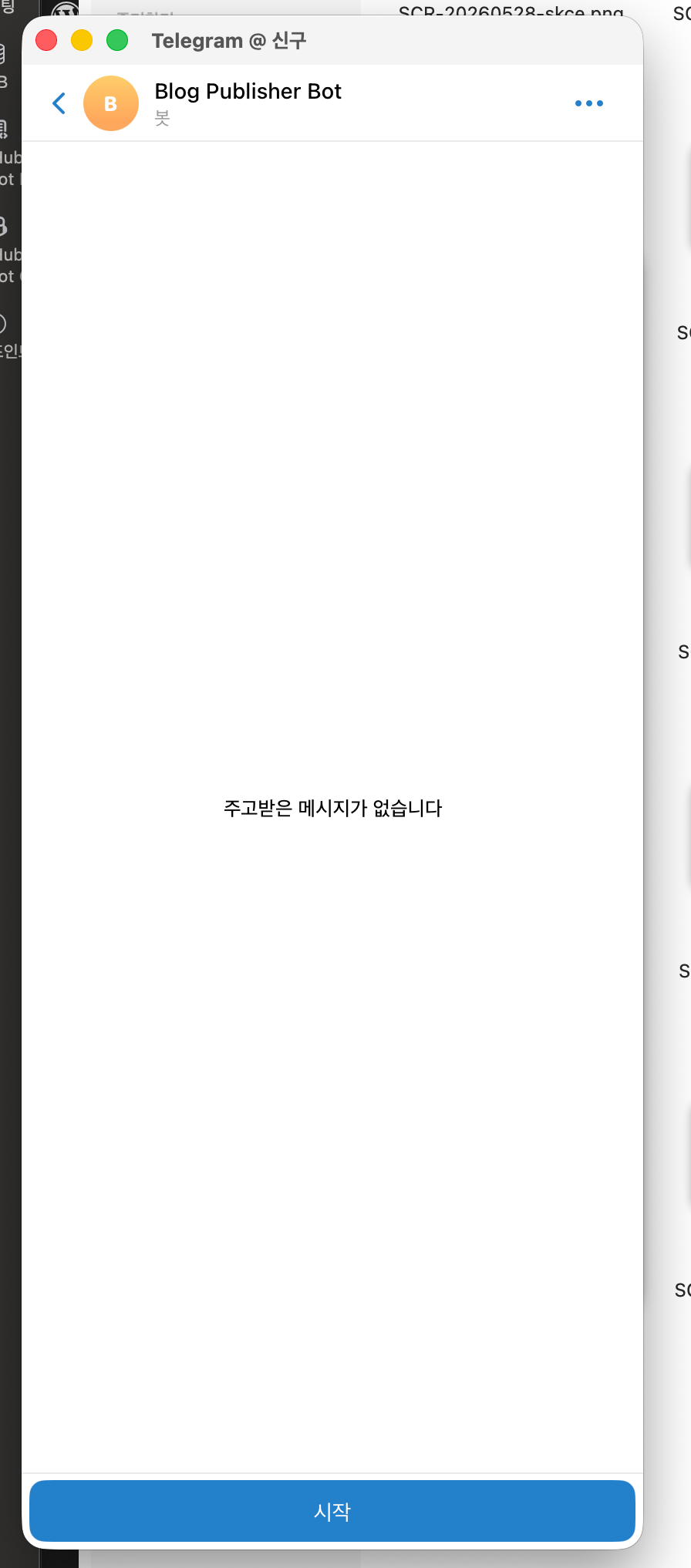
There’s something weirdly exciting about this moment. You’ve created a bot, but it can’t do anything yet. It’s like looking at a blank canvas. All potential, zero functionality.
I didn’t press the button yet. First, I needed to give this bot a brain.
Step 4: The Bot Comes Alive
This is where the magic happens — and where the story gets a little meta. I connected the bot to Claude Code running on my Mac. The bot would receive my messages via Telegram, send them to Claude for processing, and Claude would write the blog post and publish it directly to WordPress.
Once everything was wired up, I went back to that empty chat and pressed the big blue Start button.
The bot responded instantly with a help message:
- 글 주제를 메시지로 보내면 Claude가 작성하고 발행합니다 — Send a topic and Claude will write and publish it
- /status — Check blog status
- /posts — Recent posts list
- /traffic — Server traffic check
- /schedule 날짜 시간 — Set schedule time for next post
- 예시: ‘바이브 코딩으로 투두앱 만든 후기 써줘’ — Example: “Write a review of making a todo app with vibe coding”
The bot was alive. It was speaking Korean to me. It was ready.
Now came the real test.
Step 5: The First Real Post — An Election Scandal
It was 2:14 PM on a Thursday. South Korea had just held local elections on June 3rd, and something wild had happened: multiple polling stations in Seoul — specifically in areas known for supporting the conservative party — had run out of ballots. Voters were literally turned away because there weren’t enough pieces of paper. The National Election Commission’s response was essentially “Sorry, but what can you do?” — an attitude that was fueling massive public outrage about election integrity.
This was the kind of breaking story that makes you want to write about it immediately. And I was on my phone.
So I opened the bot and typed a long message in Korean, explaining the situation — the ballot shortage, the suspicious geographic pattern, the Election Commission’s dismissive response, the public backlash. Just a raw, stream-of-consciousness paragraph about what was happening.
The bot replied within seconds: “글 작성 시작합니다…” — Starting to write the post. Then: “주제: [my entire Korean message]” and “잠시 기다려주세요 (1-2분 소요)” — Please wait, 1-2 minutes.
I put my phone down. Made some coffee. Checked back.
At 2:16 PM — exactly two minutes later — the bot sent me a message:
“발행 완료되었습니다!” — Publishing complete!
And there it was:
- 글 제목: When Democracy Runs Out of Paper: South Korea’s June 3 Election Ballot Shortage Crisis
- 글 URL: A live link to the published post on reapbountifully.com
- 카테고리: Side Hustle
- 상태: 발행됨 (Published)
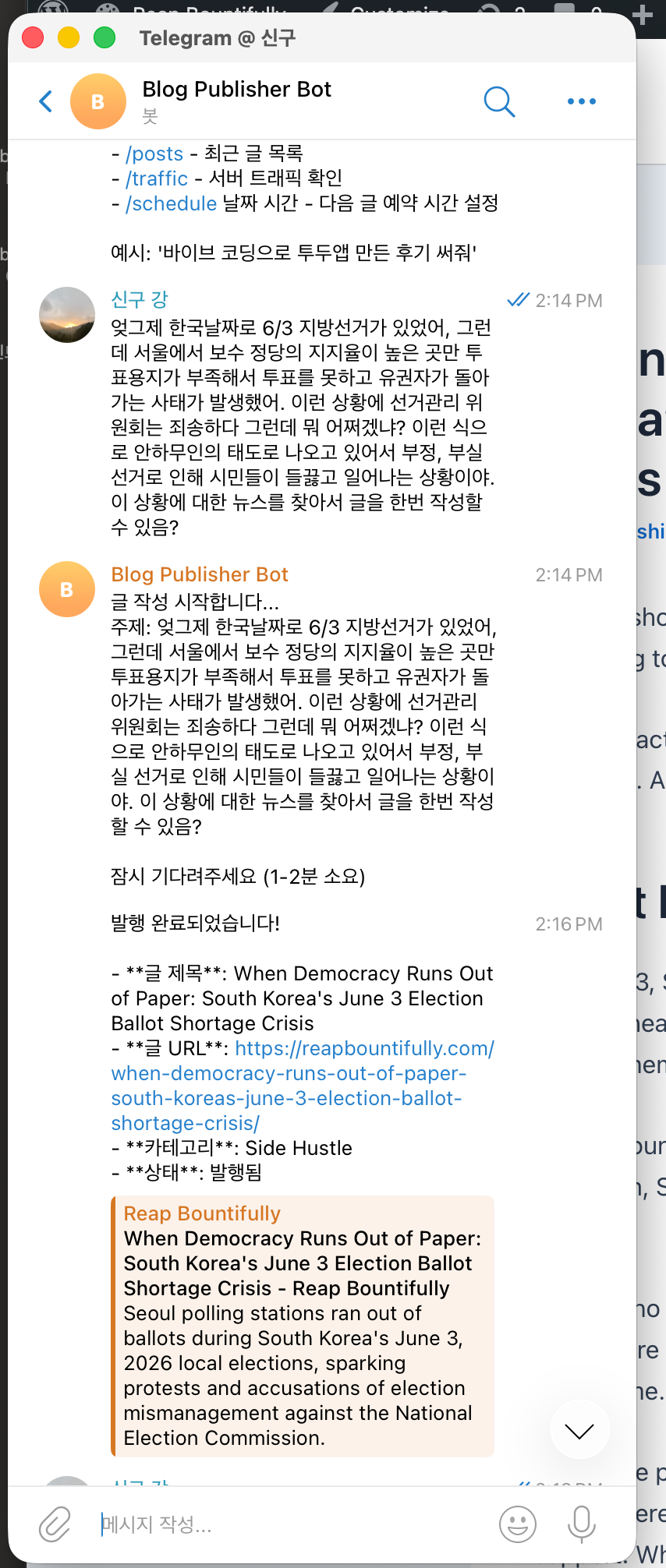
Below the message, Telegram automatically generated a link preview card showing the post’s featured image — a moody sunset cityscape — along with the meta description. The post was live. On my actual blog. With a featured image, proper formatting, SEO metadata, everything.
The Magic Moment
Let me just underscore what happened here.
I typed a rambling paragraph in Korean about a local political scandal. Two minutes later, there was a fully written, SEO-optimized, English-language article published on my blog. Complete with a featured image. From my phone. While standing in my kitchen.
I didn’t open WordPress. I didn’t write a single English sentence. I didn’t search for a stock photo. I didn’t set meta descriptions or focus keyphrases. The bot — and the AI behind it — handled all of it.
This is what I’d been trying to build. This is the dream of phone-first blogging.
But Then I Noticed the Problem
Look at that category line again: Side Hustle.
This was a post about a Korean election scandal. It had nothing to do with side hustles. It should have gone into a news or current events category. But the bot had just… defaulted to Side Hustle, because that’s what it was configured to do when it didn’t know any better.
It’s a small thing, but it matters. Categories affect your site structure, your SEO, your reader experience. If every post goes into the same bucket regardless of topic, your blog starts to feel like a junk drawer.
This was the first sign that the bot needed to be smarter about understanding what kind of post it was creating, not just creating the post itself.
What I Learned
Building the Telegram bot was the easy part — the Telegram Bot API is well-documented, BotFather walks you through setup, and connecting it to a backend is straightforward if you’ve done any API work before.
The hard part is everything that comes after the bot works. The category problem was just the beginning. What about post scheduling? What about editing a post after it’s published? What about when the AI misunderstands your intent?
The bot worked. It published a real post in two minutes. But “working” and “working well” are two very different things.
Coming in Part 2
In Part 2, I’ll show what happened when I tried to give the bot feedback — and why it accidentally wrote a second post instead of fixing the first one. Spoiler: telling an AI “that category is wrong” is more complicated than you’d think when the AI is primed to interpret everything as a new blog topic.